Help Center & Common Questions
Find simple step-by-step guides for managing chores, paying bills, saving money, and learning about market simulations.
1. Getting Started & Family Setup
Step-by-Step Instructions:
- Register for a Parent account at Register Parent. A new family workspace is automatically created.
- Look at the top header bar on your Parent Dashboard to find your unique Family Invite Code (e.g.
SMITH123). - Direct your child to the Register Kid page and provide them with your unique invite code.
- Once registered, your child will immediately appear under your Parent Dashboard family roster with their initial Checking and Savings accounts.
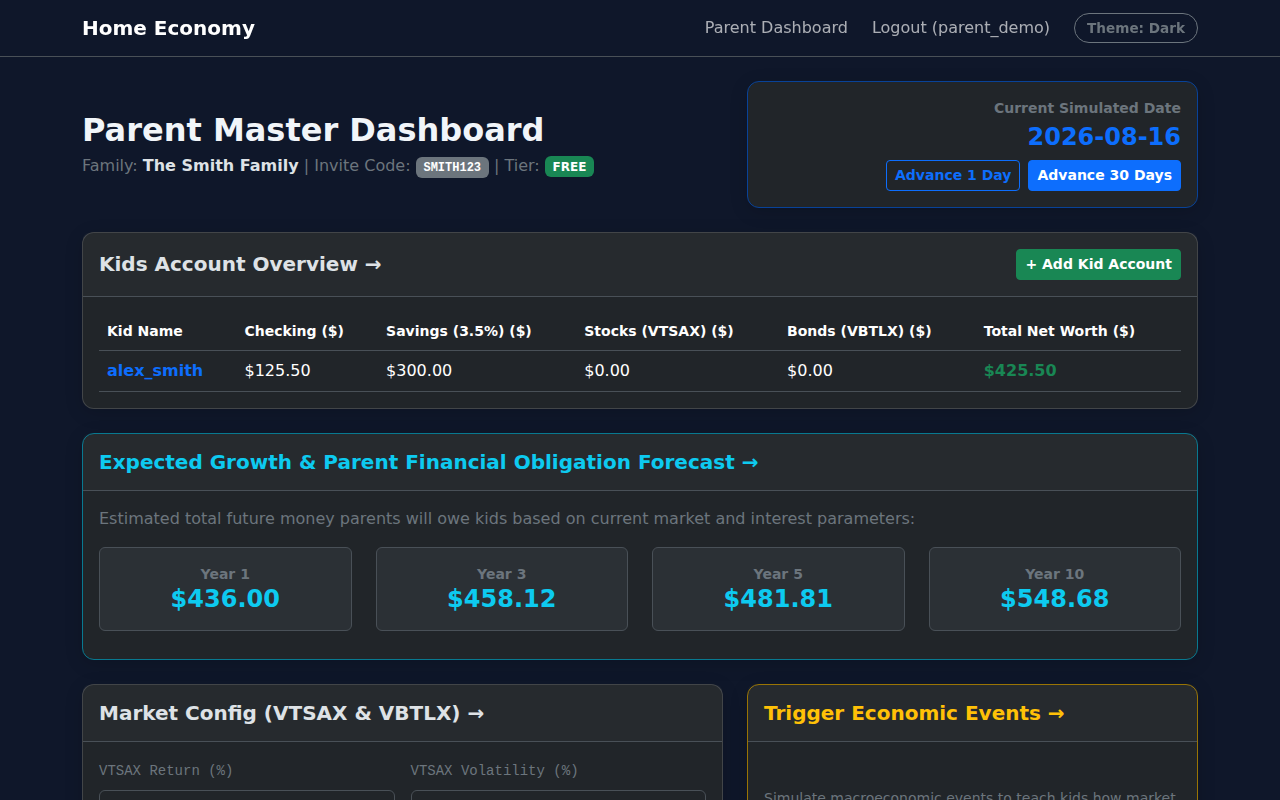
Parent Dashboard showing family invite code and connected kid accounts.
The Kid Dashboard gives children a clean view of their financial life. They can see:
- Account Balances: Real-time balances for Checking, Savings, and Simulated Growth Accounts.
- Assigned Chores: Chores ready to be completed and submitted for allowance payouts.
- Household Bills: Unpaid bills due soon, with a Pay Bill button.
- Market Simulators: Interactive simulated stock and bond sandbox cards.
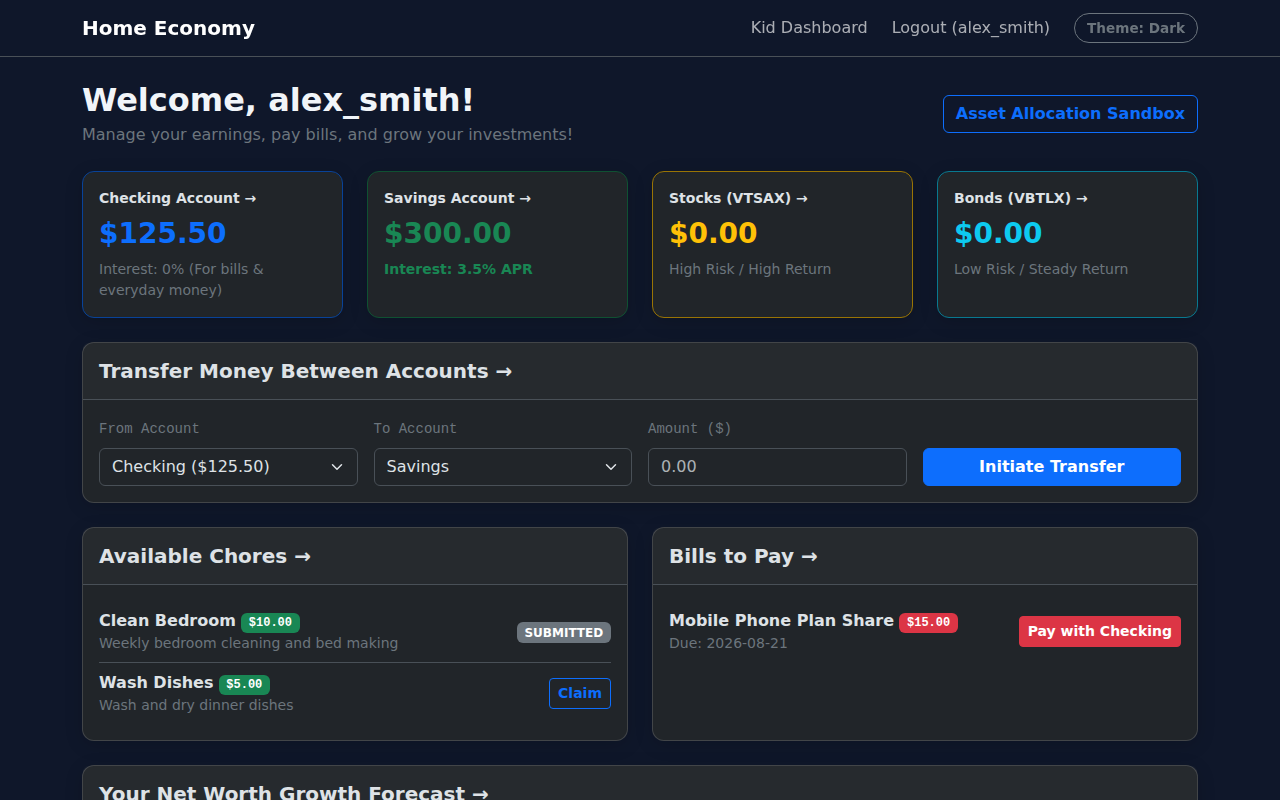
Kid Overview Dashboard displaying account balances and quick action cards.
2. Chores & Allowance Management
How the Chore Lifecycle Works:
- Create Chore: On the Parent Dashboard or Chores Management page, enter the title, reward amount ($), frequency, and select the child.
- Edit or Delete Chores: Parents can update or delete chores at any time prior to closure by clicking the Edit or Delete buttons on the Chores Management table.
- Child Submits Chore: On the Kid Dashboard, the child clicks Mark Complete when finished.
- Parent Approves: The chore status updates to "Submitted". On the Parent Dashboard, click Approve & Pay. The reward is instantly deposited into the child's Checking Account.
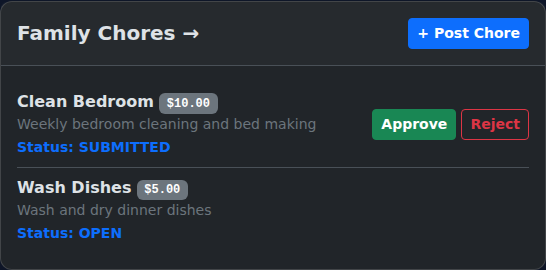
Chore management card with approval actions and assignment forms.
3. Household Bills & Expenses
Step-by-Step Guide:
- Issue Bill: Parents use the "Create Bill for Kid" form on the Parent Dashboard or Bills Management page to specify title, amount, due date, and optional late fee.
- Edit or Delete Unpaid Bills: Parents can modify or delete unpaid or overdue bills anytime before payment by clicking Edit or Delete on the Bills table.
- Review Due Date: The bill appears on the kid's dashboard under "Unpaid Bills" with the due date and late fee penalty details.
- Pay Bill: The kid clicks Pay Bill. Bills are paid strictly using Checking Account funds. The payment is recorded as a transaction, and status updates to "Paid".
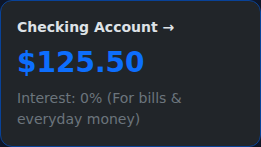
Unpaid bills interface with payment status and due dates.
4. Savings Interest & Recurring Transfers
How to Encourage Saving:
- Configure Interest Rate: On the Parent Dashboard, set an annual interest rate (e.g., 3.5%) for savings accounts to demonstrate compound growth over time.
- Automated Recurring Transfers: Set up automated transfers (e.g. $10 weekly from Checking to Savings) to teach habit-building automatic savings.
- Transfers Clearing: Transferred funds clear after the configured simulation delay period to teach patience in financial planning.

Parent configuration for interest rates and recurring transfers.
5. Stock & Bond Market Simulations
Economic & Growth Concepts Taught:
- Market Model Options: Kids can practice allocating to Simulated Stocks (Broad Market Model) with higher volatility, or Simulated Bonds (Bond Market Model) with lower volatility.
- Simulated Allocation: Children can allocate or redeem simulated units using their Checking account funds.
- Market Event Triggers: Parents can trigger simulated market events (such as a 20% Market Crash or 15% Bull Run) to teach kids how economic fluctuations impact balances over time.
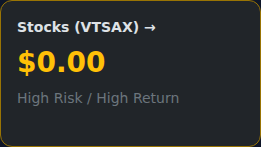
Kid Market Simulation card showing model options and simulated units.
Need More Help or Have Questions?
Our support team is here to assist you with setting up your family account, managing subscriptions, or answering any questions.
Contact Support
or email us directly at duncan.tulimieri7@gmail.com